Office Map
The office map is the heart of deskmy — a top-down view of your company's virtual office. Everyone appears as an avatar exactly where they last were. You can see at a glance who's online, who's in a meeting, and who's free — then walk over and talk, just like in a real office.
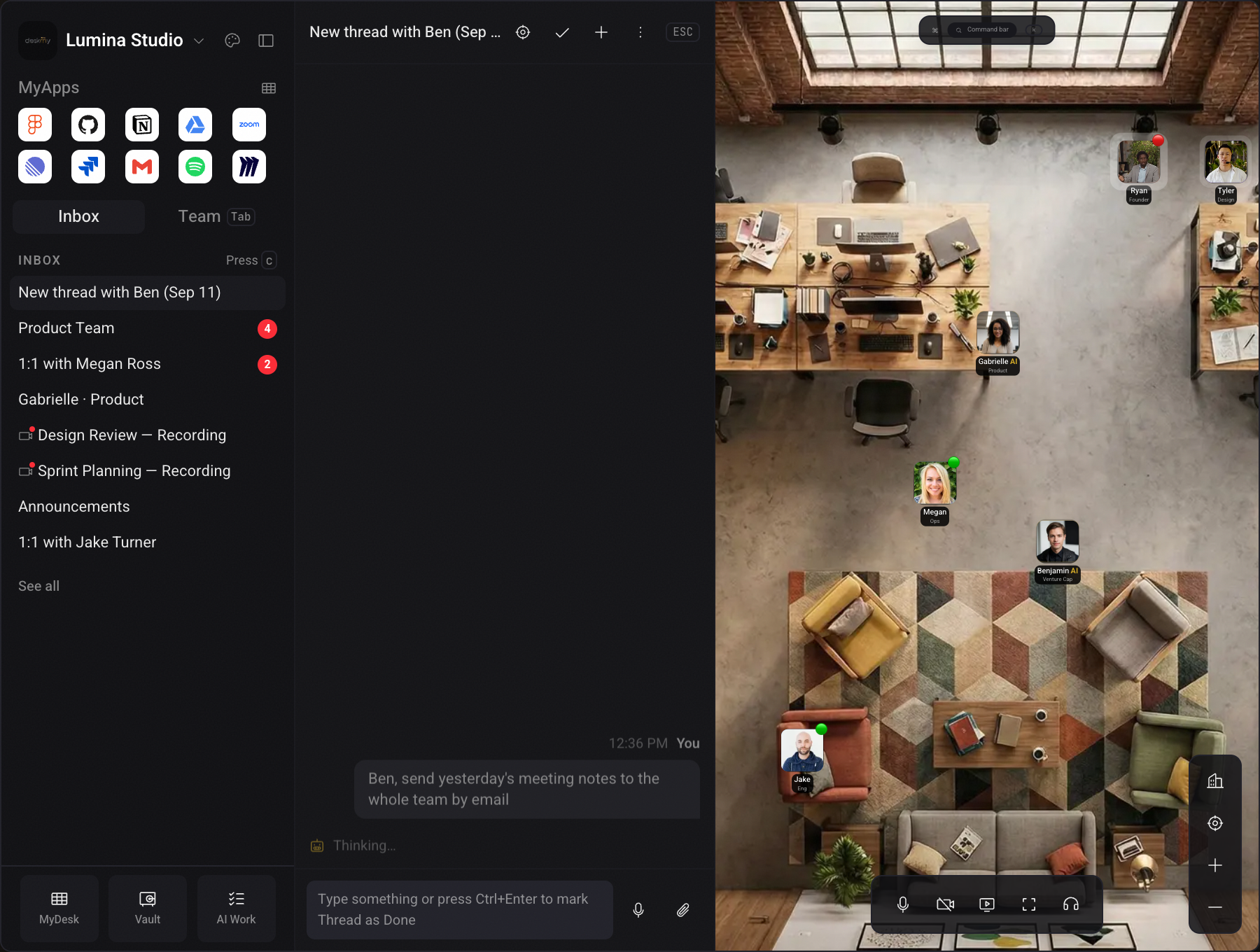
What you can do
- See presence at a glance — avatars show who's online, away, in a meeting, or in Focus Mode.
- Move around — click anywhere on the map to walk your avatar there.
- Join a space — enter a space to connect audio (and optionally video) with everyone inside.
- Knock on locked spaces — knock to request entry; someone inside can let you in.
- Invite people to your space — pull teammates into the space you're in.
- Broadcast to the whole floor — talk to everyone at once (great for announcements and all-hands).
- Set your status — available, away, Focus Mode, or a custom message teammates see next to your avatar.
Getting around
When you sign in, you land on the map at your last position.
- Move — click the spot you want to go to.
- Enter a space — move into a space's area; you're connected to its audio automatically. Turn your camera on whenever you want.
- Leave — walk out of the space, or return to the map view.
You can also stay on the map without joining any space — you'll still see the office, get notifications, and receive conversations.
Spaces
Spaces are the named areas on the map — meeting rooms, focus areas, lounge corners. Each space has its own conversation and can be open or locked:
- Open spaces — walk in anytime.
- Locked spaces — knock on the door, and someone inside can let you in. The lock keeps private conversations private.
- Waiting room — external guests land in a waiting room until the host lets them in.
Admins design the layout in the map editor (Settings → Office maps), where they can add spaces, arrange the floor, and set capacities.
Your presence
Your avatar carries your name, photo, and status. Use the status selector to mark yourself available, away, or in Focus Mode — which tells teammates not to interrupt. You can also set a daily focus so colleagues see what you're working on.
Talking to the whole office
Broadcast lets you open your mic and camera to everyone on the floor — for announcements, celebrations, or town halls. Only a limited number of people can broadcast at once, and the host can control who gets the floor.
Common questions
How do I know if someone is free to talk? Look at their avatar — the status badge shows online, in a meeting, away, or Focus Mode. If they're free, walk over or click their avatar to start a conversation.
Can I work without joining a space? Yes. Keep your avatar on the map without entering any space — you stay visible and reachable.
What happens when I knock on a locked space? The people inside get a "wants to join" notification and can let you in or decline.
Who can broadcast? Broadcast is limited per workspace and typically used by admins — for example, to address the whole company at once.
Common use cases
- Check who's around before pinging — scan avatars and statuses, then walk over or message only when someone's free.
- Ad-hoc pairing — two teammates enter a space, talk with voice and video, share a screen, and leave when done. No meeting link needed.
- Company all-hands — an admin broadcasts to the whole office while people stay at their desks.